Finding your way around
Everything in the portal hangs off the sidebar on the left. There are four main areas, plus a Manage section.
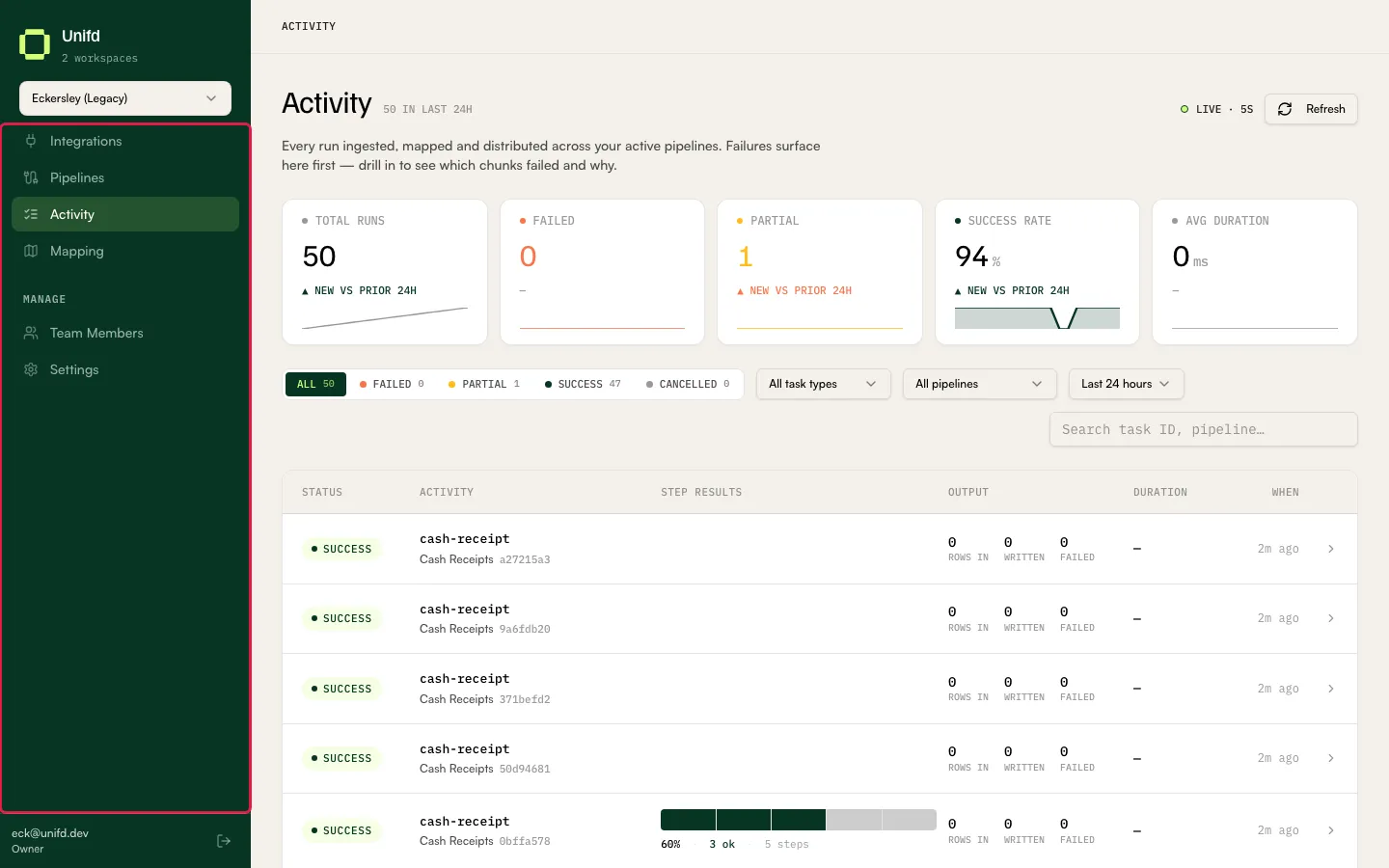
The four main areas
Section titled “The four main areas”| Area | What it is for |
|---|---|
| Integrations | The systems Unifd is connected to — your source system and your storefront. See Integrations. |
| Pipelines | The flows that move one kind of data between two integrations. See Pipelines. |
| Activity | Every recent sync run, and why any of them failed. See Sync runs. |
| Mapping | The advanced editor for the field-by-field rules a pipeline follows. See Mapping. |
Each pipeline handles one kind of data — products, stock, orders, trade customers, fulfilments, gift cards, cash receipts — and each has its own guide under Guides.
A good mental model: an integration is a system, a pipeline connects two of them for one kind of data, and a run is one execution of a pipeline.
Your workspace
Section titled “Your workspace”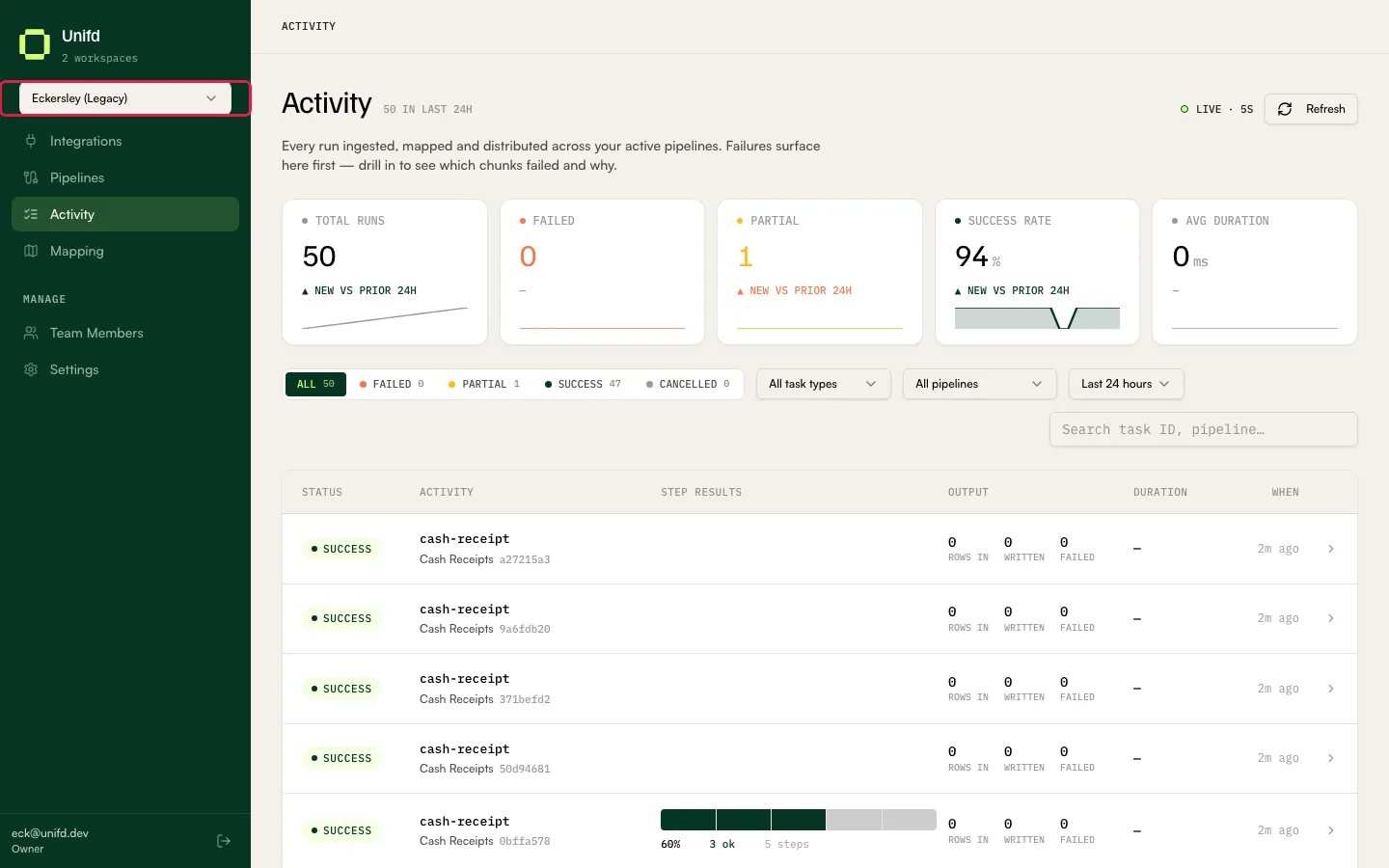
Above the navigation is your workspace switcher, with a line underneath telling you how many workspaces you can reach — for example “2 workspaces”.
A workspace is one set of integrations, pipelines and data, with its own name. If you can reach more than one, you switch between them here. Everything else in the portal — every list, every run — shows only the workspace you currently have selected.
If a pipeline or a run you expect is missing, check the workspace switcher first. You may be looking at a different workspace.
The Manage section
Section titled “The Manage section”Team Members and Organisation Settings both currently show “Coming soon”. Ask your Unifd contact if you need a change in either area — for example adding a colleague’s account.
What you will not find here
Section titled “What you will not find here”Creating and configuring integrations and pipelines is done by the Unifd team, not in the merchant portal. The empty states say as much: “Contact your administrator to add one.” You can run, monitor, and adjust the settings of what already exists.