Working with pipelines
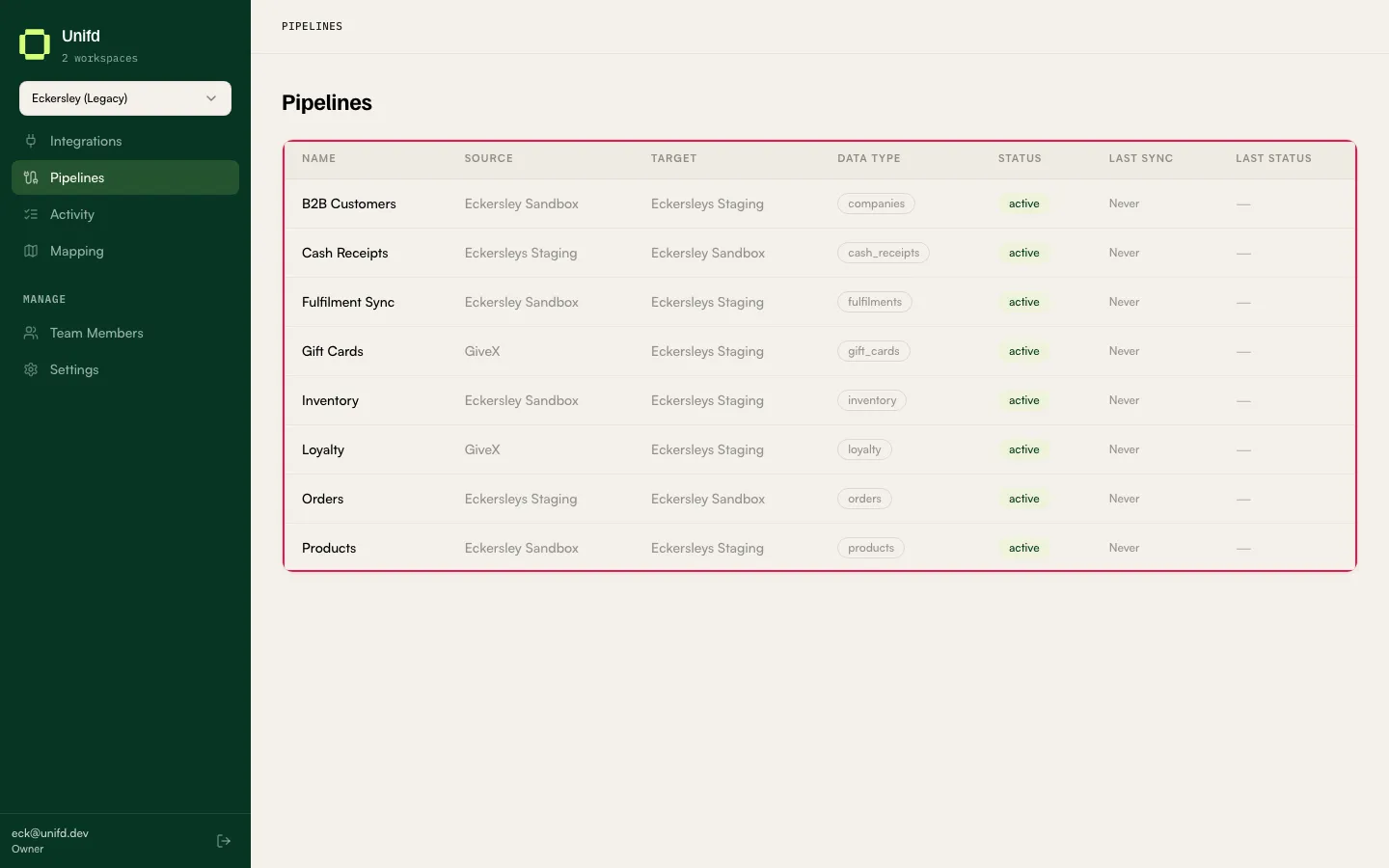
A pipeline moves one kind of data between two of your integrations. The Pipelines page lists every pipeline in your workspace.
Reading the list
Section titled “Reading the list”| Column | What it tells you |
|---|---|
| Name | The pipeline’s name. |
| Source | The integration data is read from. |
| Target | The integration data is written to. |
| Data Type | What kind of data it moves. |
| Status | Whether the pipeline is in service — active or paused. |
| Last Sync | See the warning below — this may read Never even for a pipeline that runs constantly. |
| Last Status | Likewise, may read —. |
Do not rely on the Last Sync and Last Status columns. In a workspace whose pipelines had run 50 times in the previous 24 hours, every row still read
Last Sync: NeverandLast Status: —. To find out when a pipeline last ran, open it and read the pill in its header, or check Activity — both of which are reliable.
Direction varies by data type, so read Source and Target rather than assuming. Products, stock, companies and fulfilment updates are read from your source system and written to your storefront. Orders and cash receipts go the other way — captured at the storefront and written back into your source system.
See Statuses for what each status value means.
One pipeline per kind of data
Section titled “One pipeline per kind of data”Each pipeline carries exactly one data type, and that decides which tabs it has and which settings it offers. A full set looks like this:
| Data type | What it moves | Guide |
|---|---|---|
products |
Your product catalogue | Checking your products |
inventory |
Stock levels per location | Stock |
orders |
Orders placed on your storefront | Orders |
companies |
Your trade account customers | Companies |
fulfilments |
Despatch and tracking updates | Fulfilments |
gift_cards |
Issued gift cards | Gift cards |
cash_receipts |
Payments recorded against orders | Cash receipts |
loyalty |
Loyalty accrual | — |
You will only have the ones your business uses.
Opening a pipeline
Section titled “Opening a pipeline”Select a row to open the pipeline. You land on its data tab.
Every tab shares the same header. It tells you which two systems this pipeline joins, and in which direction:
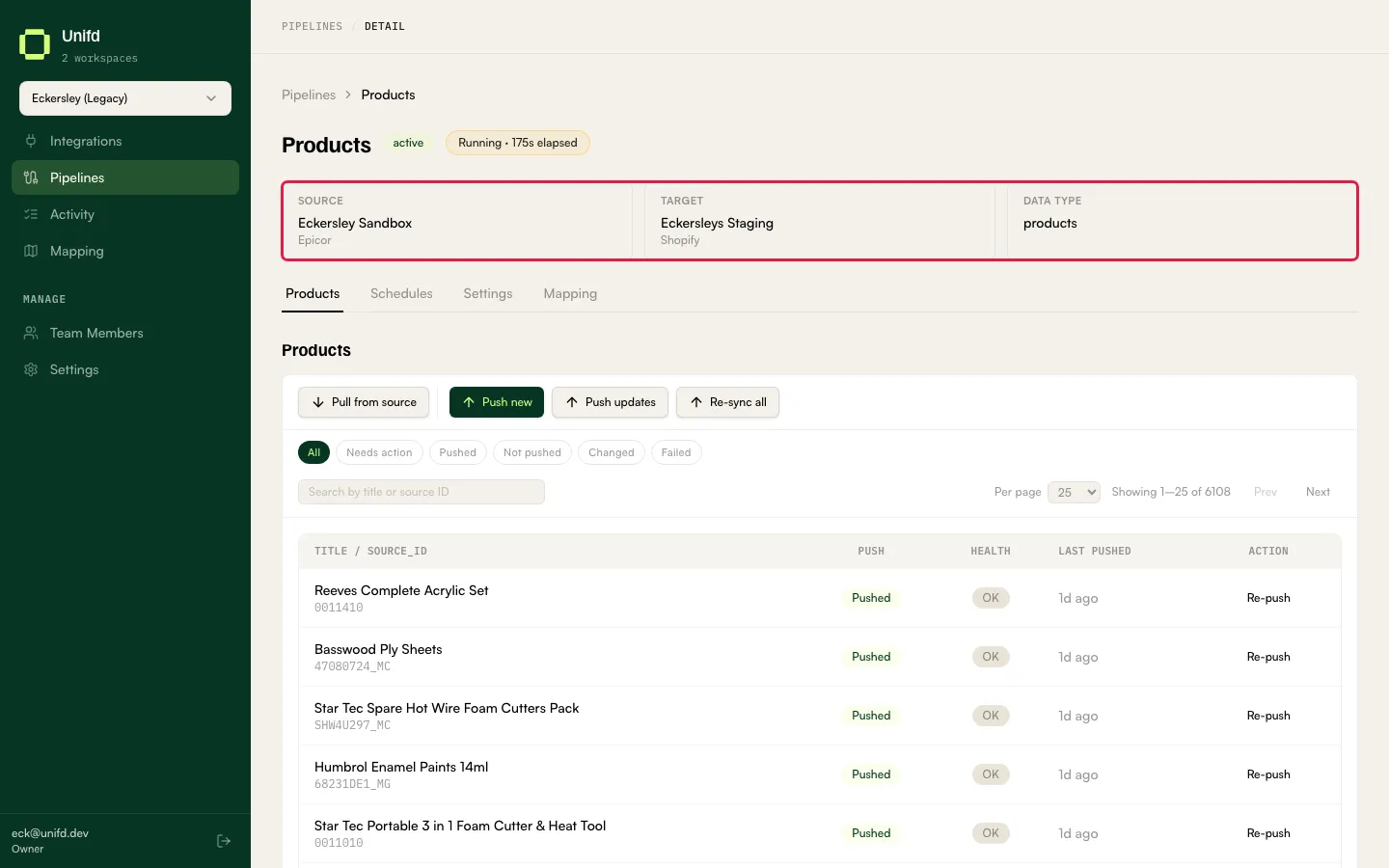
- The pipeline’s name and status.
- A pill describing the last run — see below.
- Source, Target and Data Type, with each integration’s platform shown under its name.
The last-run pill
Section titled “The last-run pill”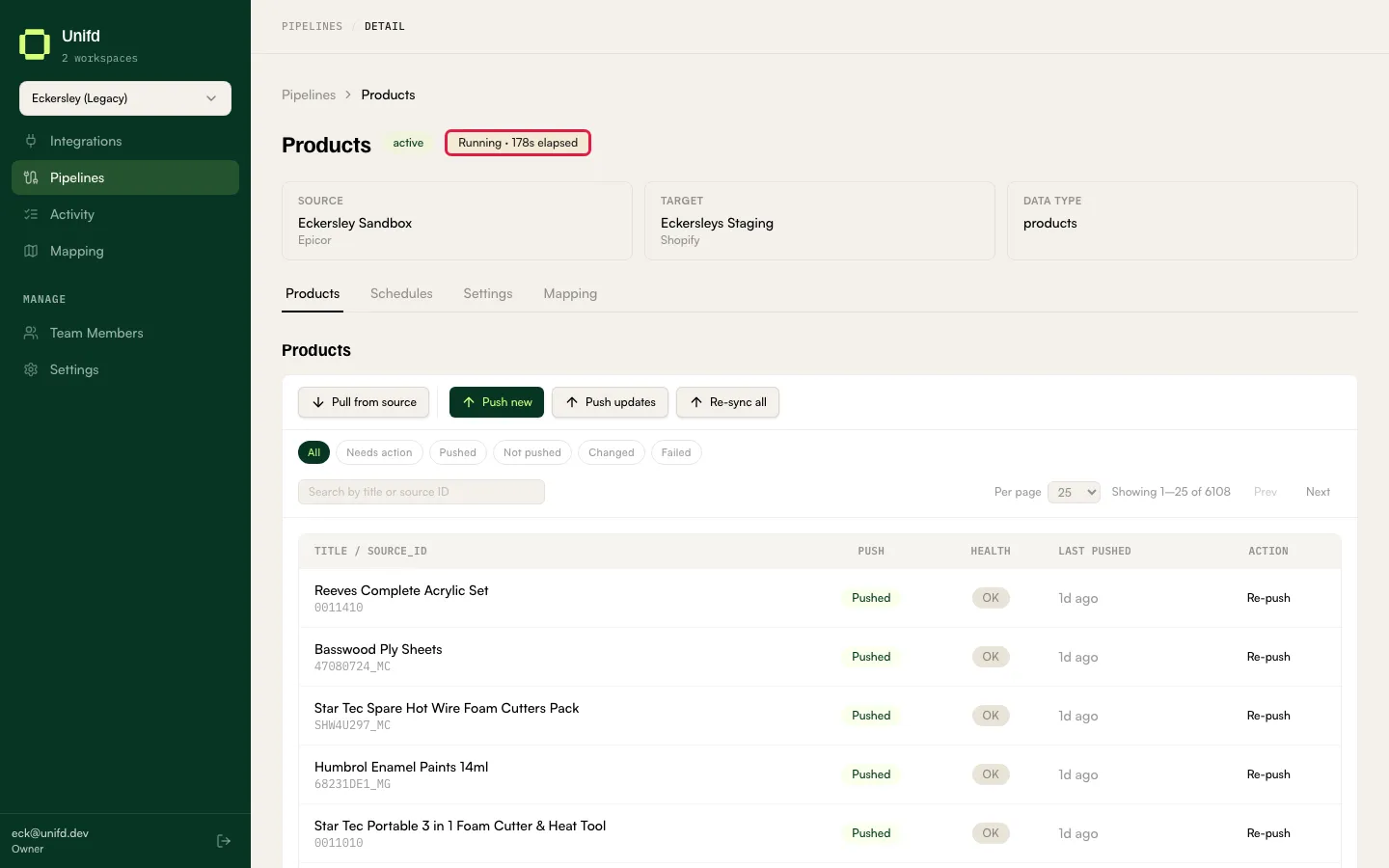
It takes several forms:
| Pill | Meaning |
|---|---|
Last sync 29m ago · Success |
The last run finished cleanly. |
Last sync 59m ago · Partial |
The last run left some records behind. |
Running · 138s elapsed |
A sync is in flight right now, counting up as it goes. |
Last sync 18m ago · 3 rows need attention → |
Something needs you. The pill becomes a link straight to the rows involved. |
No runs yet |
This pipeline has never run. |
An inventory pipeline also shows a No location mappings configured warning here
until its locations are paired. See
Pipeline settings.
The tabs
Section titled “The tabs”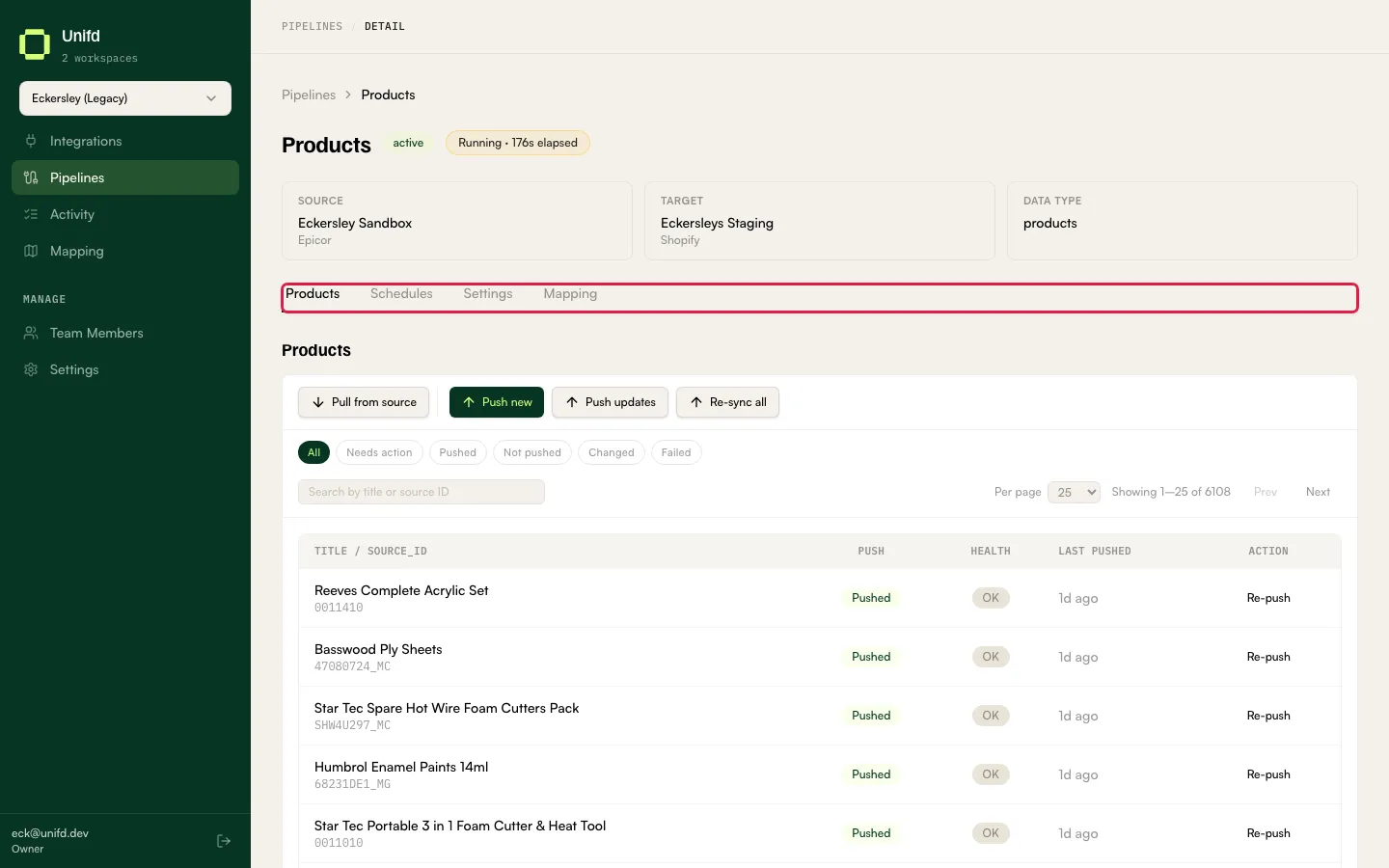
Data tab — named after the data type (Products, Inventory, Companies, Fulfilments, and so on). Where you see individual records and their sync state.
Schedules — when the pipeline runs automatically, and the button to run it now. See Schedules.
Settings — options specific to this kind of pipeline. See Pipeline settings.
Mapping — opens the Mapping Editor, described below. On an orders pipeline this tab is labelled Mappings.
Not every pipeline has all four: a fulfilments pipeline has no Mapping tab, and a loyalty pipeline has no data tab at all — it opens on Schedules.
The Schedules tab’s address ends in
/runs. Follow the tab, not the address.
The Mapping tab
Section titled “The Mapping tab”The Mapping Editor is the advanced tool that defines, field by field, how a record in your source system becomes a record on your storefront — for example which source field becomes the product title.
It opens on a canvas with a pipeline picker, panes for Sources and Targets, a list of Rules, and tabs for Price lists, Publications, Catalogs and Markets. There are Preview and Validate buttons for checking a change before saving it.
Mapping rules are normally set up with the Unifd team when your pipeline is built, and rarely need changing afterwards. Editing them changes what gets written to your storefront on every subsequent run, so talk to your Unifd contact before making changes here.
If your workspace has no pipelines yet, this page says so and offers a link to Pipelines instead.