Fulfilments
A fulfilments pipeline watches your source system for despatch information and writes it back to your storefront, so customers see that their order has shipped and can track it.
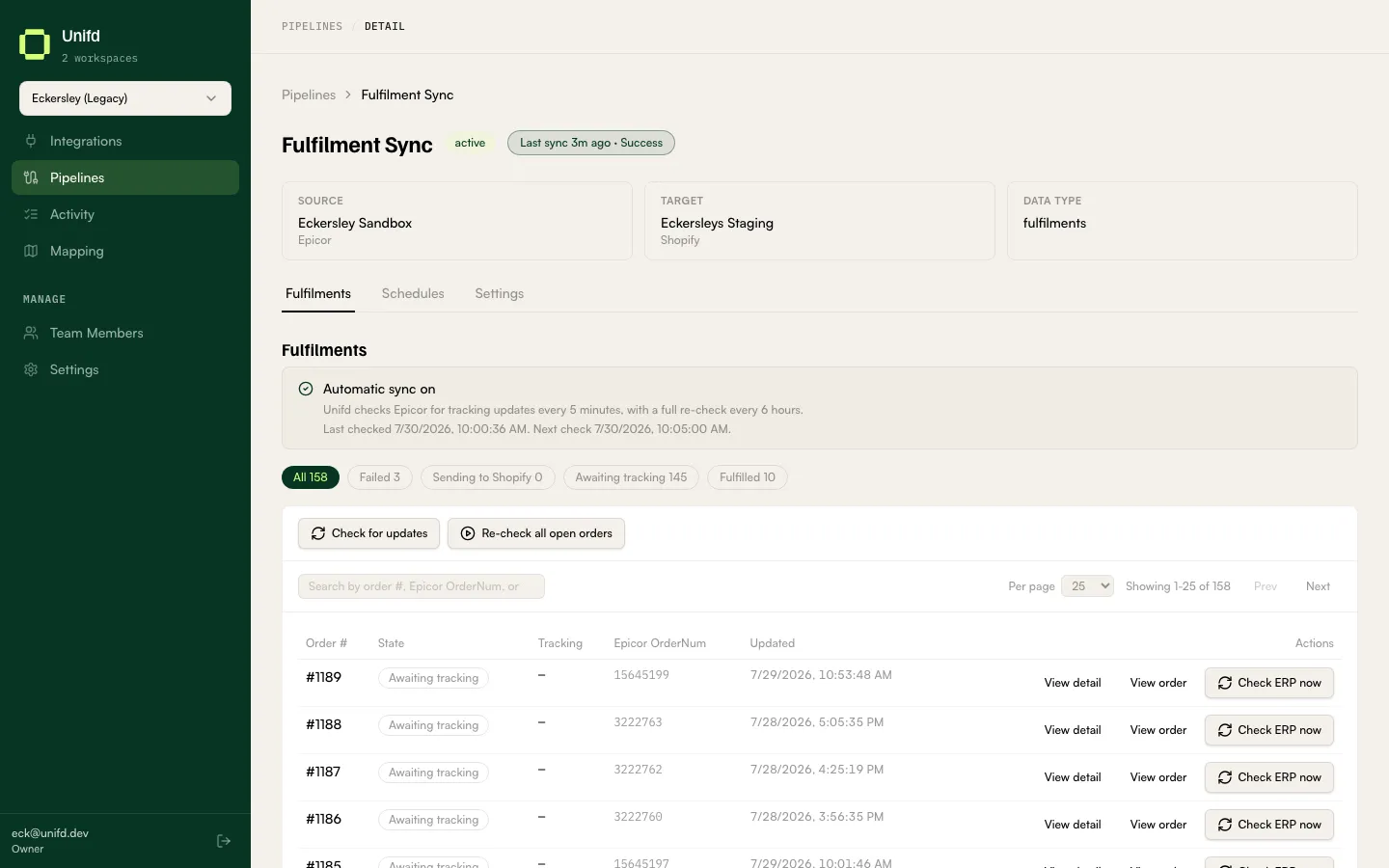
This pipeline is a poller: it checks your source system regularly rather than waiting to be told. It has no Mapping tab.
Reading the table
Section titled “Reading the table”| Column | What it tells you |
|---|---|
| Order # | The order on your storefront. |
| State | How far the despatch has got — see below. |
| Tracking | The tracking number, once your source system has one. |
| Epicor ref | The matching document in your source system. Usually the order number; for a gift-card-only order it is the AR invoice number, shown as Invoice 12345678. |
| Updated | When this row last changed. |
| Actions | View detail, View order, and Check ERP now. Check ERP now is hidden on gift-card orders, which have no despatch to look up. |
The states
Section titled “The states”The chips carry counts, which makes this tab a to-do list:
| Chip | What it means |
|---|---|
| Awaiting tracking | Unifd is waiting for your source system to supply despatch details. Normal for a recent order. |
| Sending to Shopify | The update is on its way to your storefront. |
| Partially fulfilled | Part of the order has been despatched and is showing on your storefront; the balance is still outstanding. This is the same state Shopify shows as Partially fulfilled, so the two screens should agree. |
| Fulfilled | Your storefront has been updated. Done. |
| Failed | The update was rejected. Needs attention. |
| Gift card, no shipment | The order was a gift card only, so it reached your source system as an invoice rather than an order. Nothing will ever be despatched against it, and no action is needed. |
Most rows sitting in Awaiting tracking is expected — that is the queue of orders your warehouse has not despatched yet. Failed is the number to watch. Gift card, no shipment is finished business, not a backlog.
Nudging things along
Section titled “Nudging things along”- Check ERP now on a row re-checks that one order.
- Check for updates looks for new despatch information now, instead of waiting for the next scheduled check.
- Re-check all open orders revisits everything still outstanding — useful after fixing something in your source system that was holding several orders up.
View detail opens the fulfilment; View order jumps to the same order on the Orders tab.
If an order has been despatched in your source system but sits in Awaiting tracking, the two systems have probably not matched it up. Open the detail and check the source order number before retrying.