Schedules
A pipeline’s Schedules tab controls when it runs by itself, and gives you the button to run it immediately.
Reading a schedule
Section titled “Reading a schedule”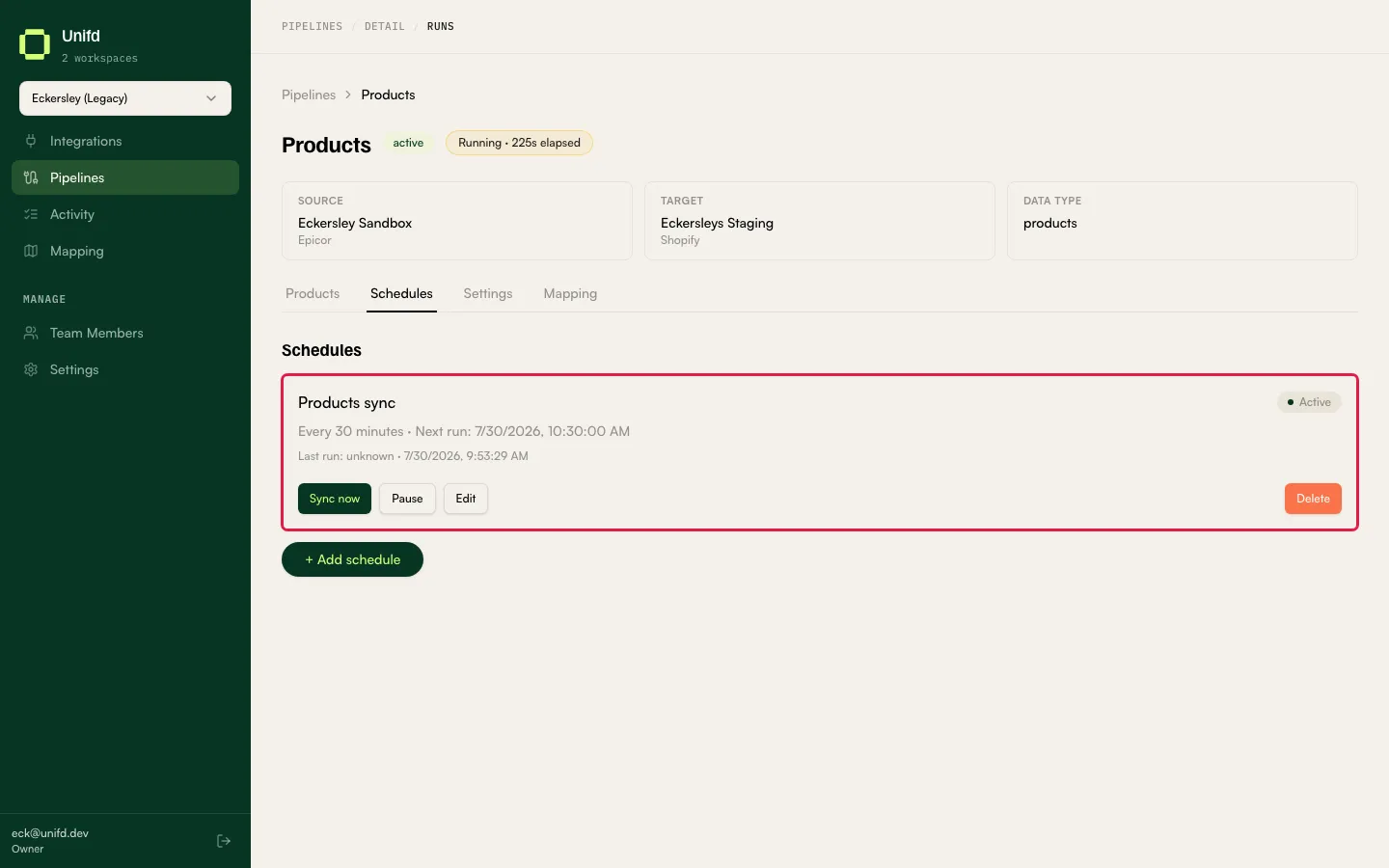
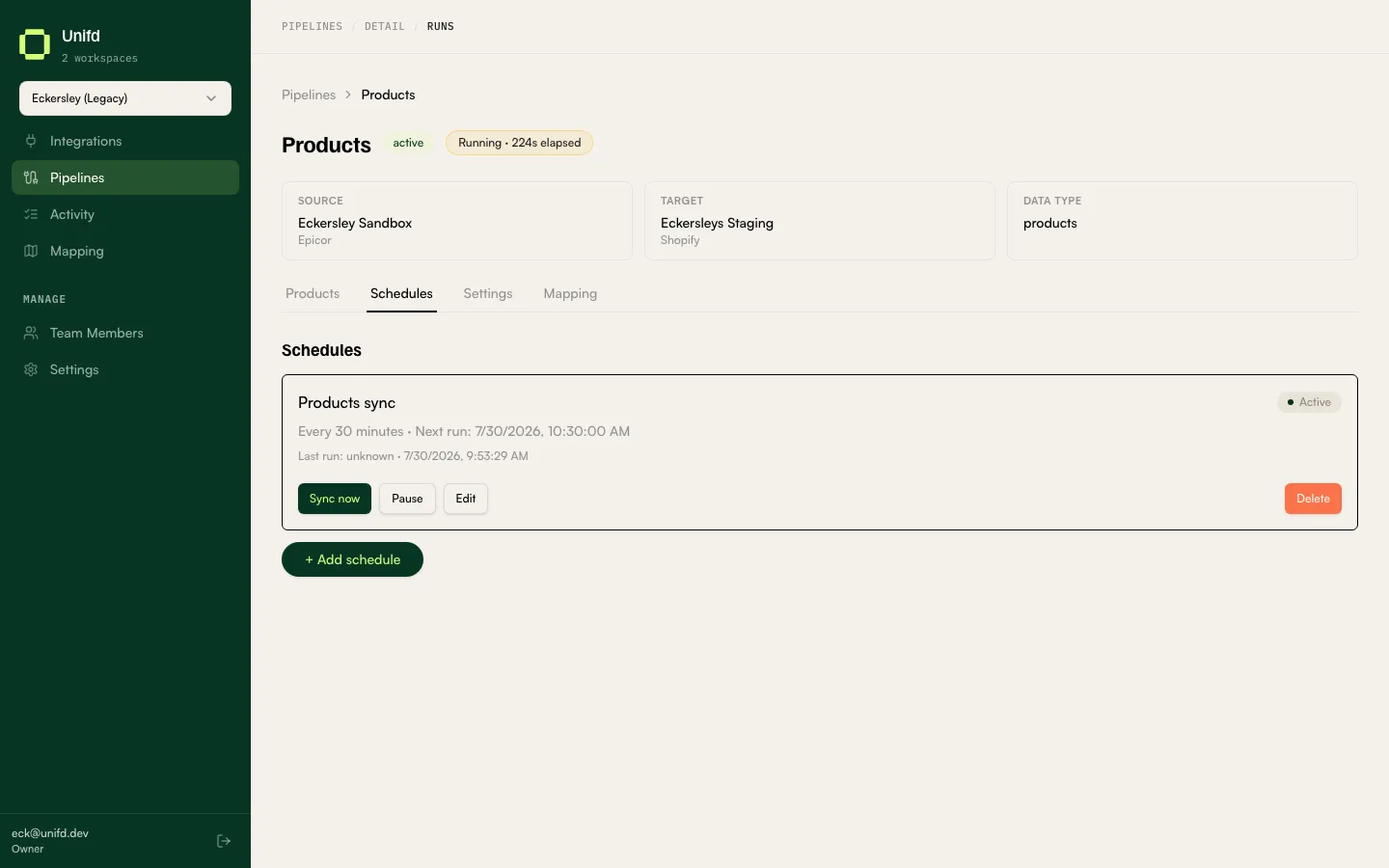
Each schedule is a card showing:
- The kind of run it triggers — for example
products. - An Active badge when the schedule is switched on.
- Its recurrence, and Next run with the date and time it will next fire.
- Last run, with that run’s outcome and when it happened.
The recurrence usually reads plainly — for example Every 30 minutes. Some
schedules instead show a schedule expression such as 0 */2 * * *; if you are not
used to reading those, use Next run, which tells you exactly when the next one
is due. The outcome on Last run tells you whether it is working.
To see the runs themselves rather than the schedule, use Activity.
What you can do
Section titled “What you can do”Each card has four controls:
- Sync now — start a run immediately, without waiting for the schedule. Use this after fixing data in your source system when you do not want to wait.
- Pause — stop the schedule firing, without deleting it.
- Edit — change when it runs.
- Delete — remove the schedule.
+ Add schedule creates a new schedule for the pipeline.
A run you start with Sync now appears in Activity with its trigger recorded as
manual, which is how you tell it apart from a scheduled run.
Pipelines with no schedule
Section titled “Pipelines with no schedule”A pipeline can have no schedules at all — the tab then shows only + Add schedule. That is normal for pipelines that are not driven by a clock: orders arrive from your storefront as they are placed rather than on a schedule.
Note that a paused schedule and a paused pipeline are two different settings in two different places: a schedule’s Active badge is on this tab, while a pipeline’s paused status is on the Pipelines list. If a pipeline is not running when you expect it to, check both.