Stock
An inventory pipeline keeps the stock figures on your storefront in step with your source system. Its data tab is headed Sizes, because stock is counted per size rather than per product.
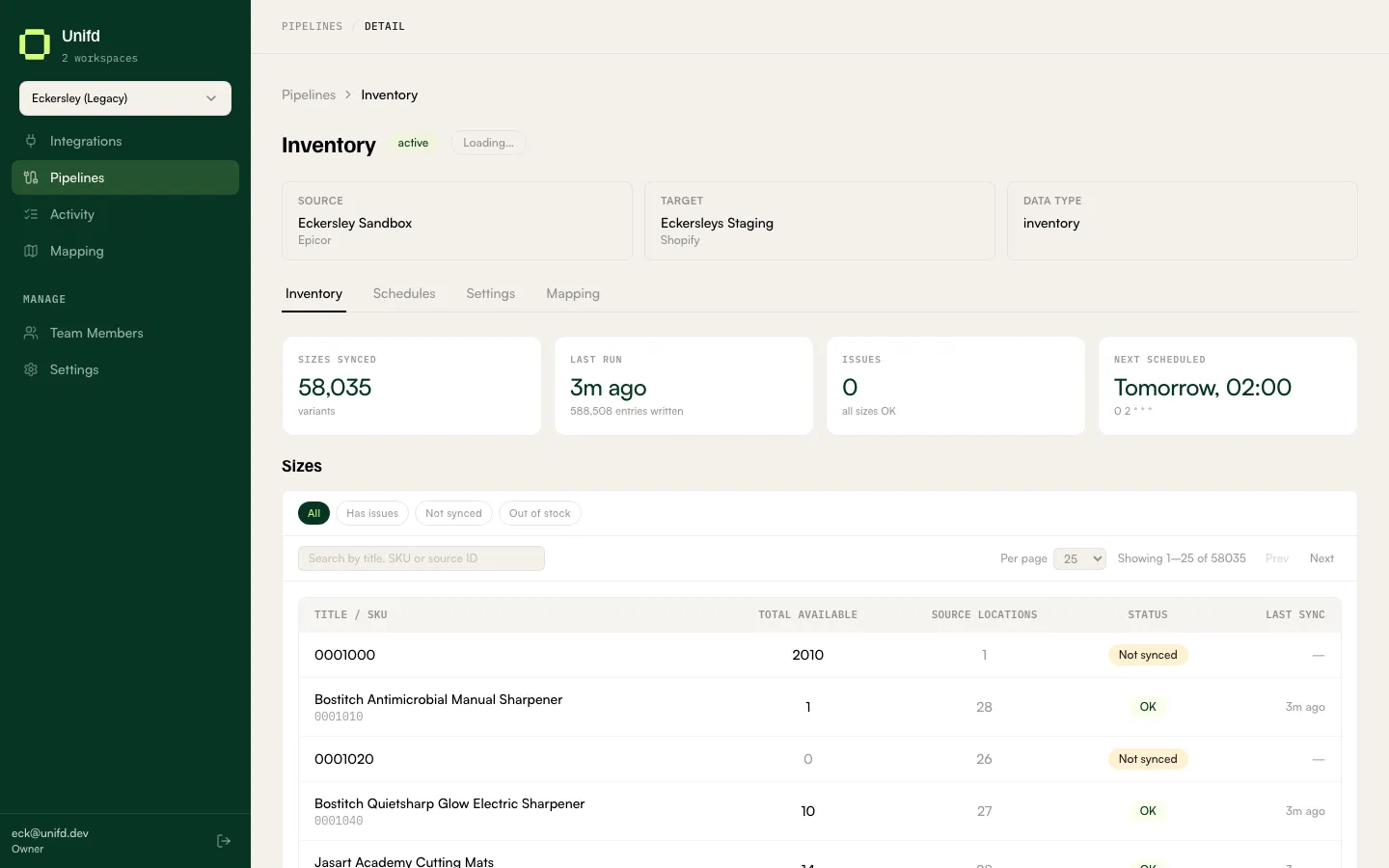
This tab carries more data than any other and can take a while to appear. Give it a moment before assuming something is wrong.
The summary strip
Section titled “The summary strip”Four figures sit above the table:
- Sizes synced — how many are in step with your storefront.
- Last run — when stock was last pushed.
- Issues — how many sizes need attention.
- Next scheduled — when the next automatic sync is due.
Reading the table
Section titled “Reading the table”| Column | What it tells you |
|---|---|
| Title / SKU | The product and the size’s SKU. |
| Total available | Stock available across all of your source locations. |
| Source locations | How many locations this size is counted in. |
| Status | OK or Not synced. |
| Last sync | When this size last reached your storefront. |
Not synced with a — in Last sync means the size has never made it to your
storefront. That is usually a location-mapping problem rather than a stock
problem — see below.
Finding a problem
Section titled “Finding a problem”The chips narrow the list: All, Has issues, Not synced and Out of stock. The search box matches title, SKU or source ID.
Has issues is where to start. Out of stock is a stock question rather than a sync question — those sizes are syncing correctly, they just have nothing left.
Select a row to open that size and see it in detail.
If nothing is syncing
Section titled “If nothing is syncing”Stock can only be published to storefront locations that have been paired with
your source warehouses. Until that is done the pipeline header shows
No location mappings configured and nothing will sync.
See Pipeline settings for how those pairs are set up, and use Reconcile locations there after changing them.