Checking your products
The Products tab on a products pipeline answers the question you will ask most often: did this product make it to my storefront, and if not, why not?
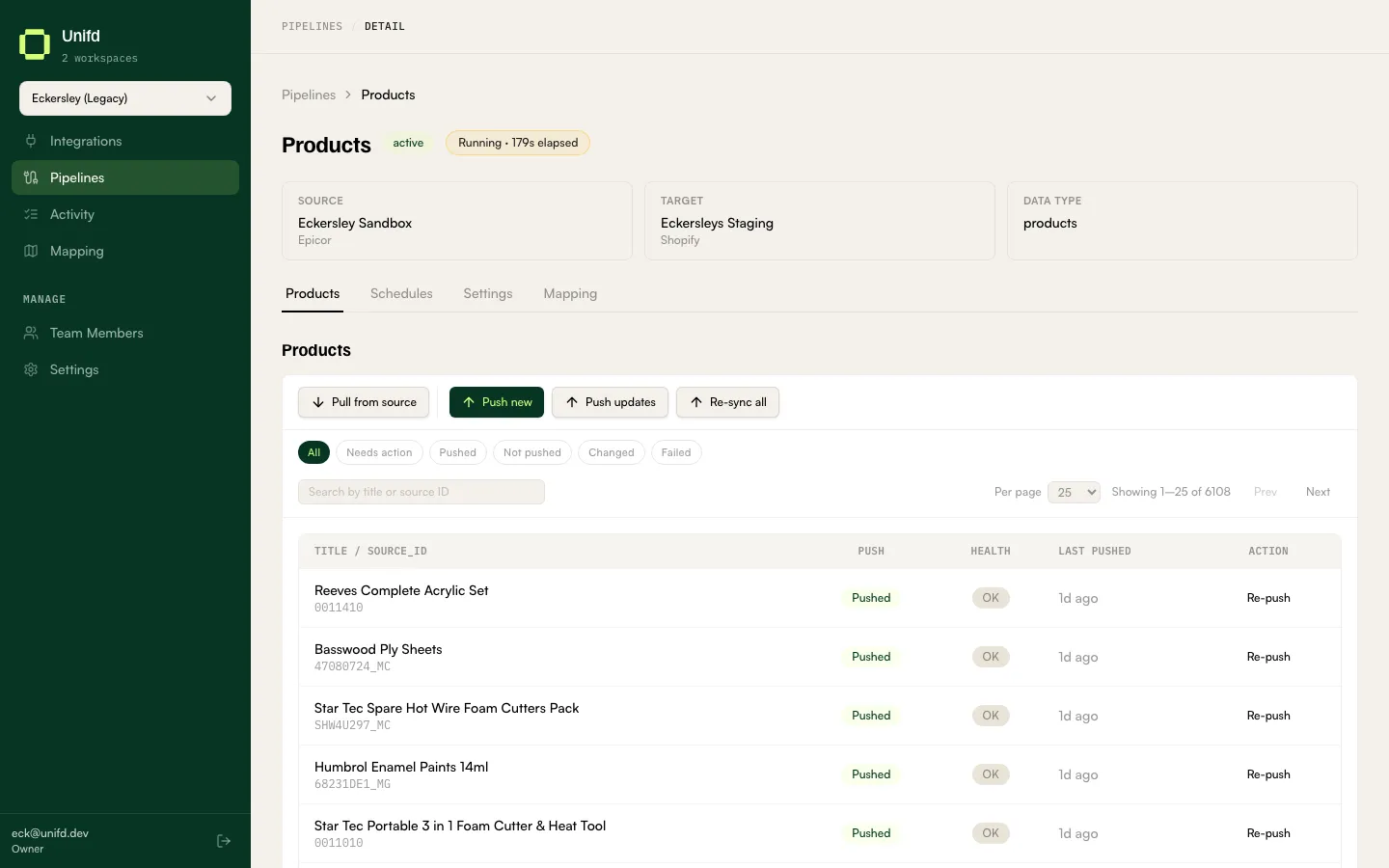
The two things each row tells you
Section titled “The two things each row tells you”Every product is described on two independent axes, shown as separate columns.
Push — has this product been sent to your storefront at all?
- Pushed — it has been sent, and Unifd knows where it lives on the storefront.
- Not pushed — it has never been sent.
Health — is what is on your storefront up to date and correct?
- OK — nothing to do.
- Changed — the product has been edited in your source system since it was last sent, so the storefront copy is out of date.
- Failed — the last attempt to send it was rejected. A view error control appears next to the badge with the reason.
Reading them together is the point. Pushed + Changed means the storefront has an old version. Pushed + Failed means an update was rejected and the storefront still has whatever was there before. Not pushed means the storefront has nothing.
The rest of each row shows the product’s title and source ID, when it was last pushed, and an action button.
Rows that need attention are listed first, so problems are on the first page.
Fixing one product
Section titled “Fixing one product”The action button changes to suit the row’s state:
| Row state | Button | What it is for |
|---|---|---|
| Not pushed | Push | Send it for the first time. |
| Pushed, changed | Update | Send the newer version. |
| Pushed, failed | Retry | Try the rejected send again. |
| Pushed, OK | Re-push | Send it again anyway. |
If a product keeps failing, read the error first — a rejection like “Variant price is required” is a data problem in your source system, and retrying will not fix it until the source data is corrected.
Working across many products
Section titled “Working across many products”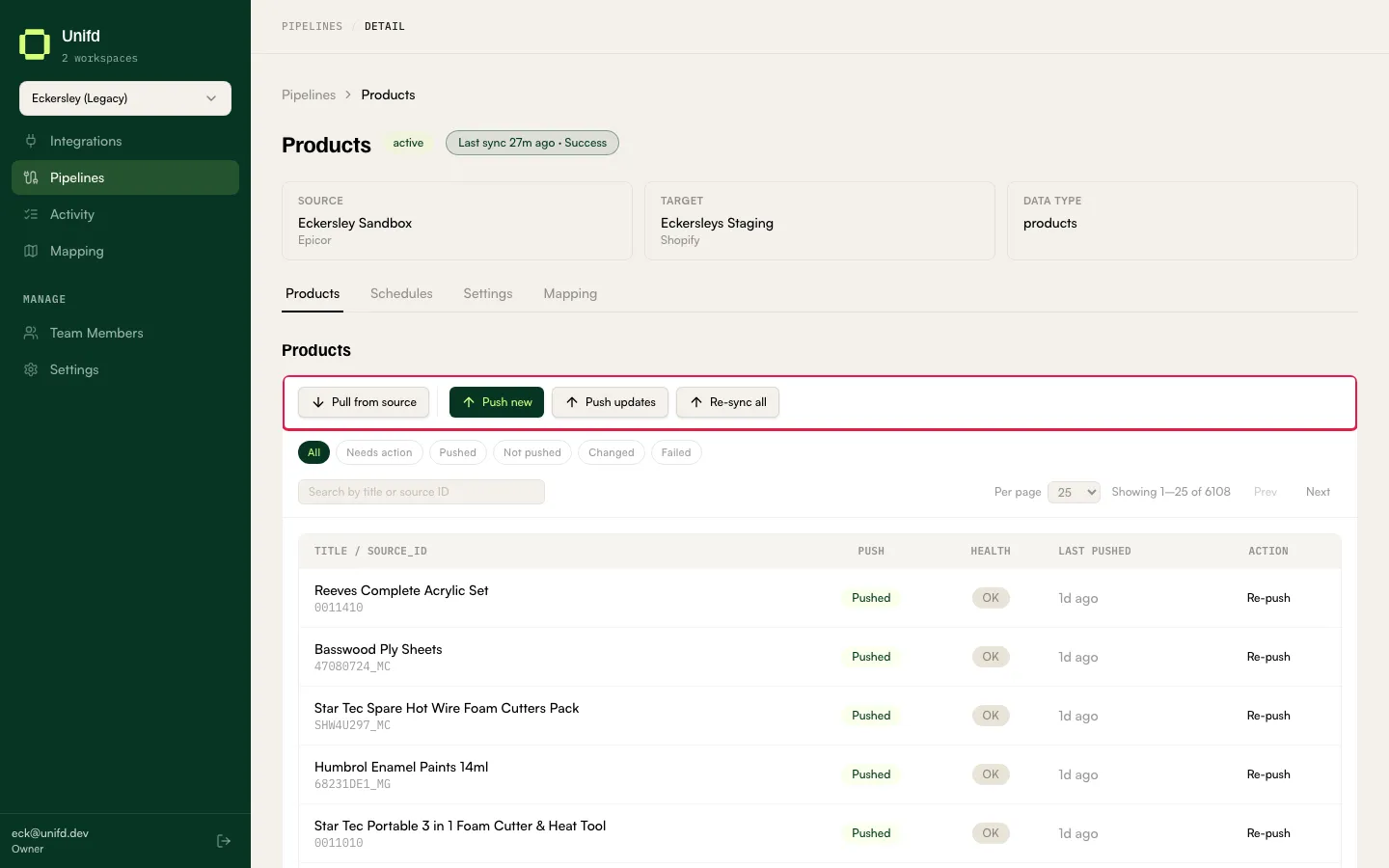
The buttons above the table act on the whole pipeline rather than one row:
- Pull from source — re-read products from your source system, so Unifd notices changes made there.
- Push new — send the products that have never been sent.
- Push updates — send the products that have changed since they were last sent.
- Re-sync all — send everything again.
Reach for Re-sync all only when you genuinely want every product rewritten; the targeted buttons are faster and quieter.
Finding a product
Section titled “Finding a product”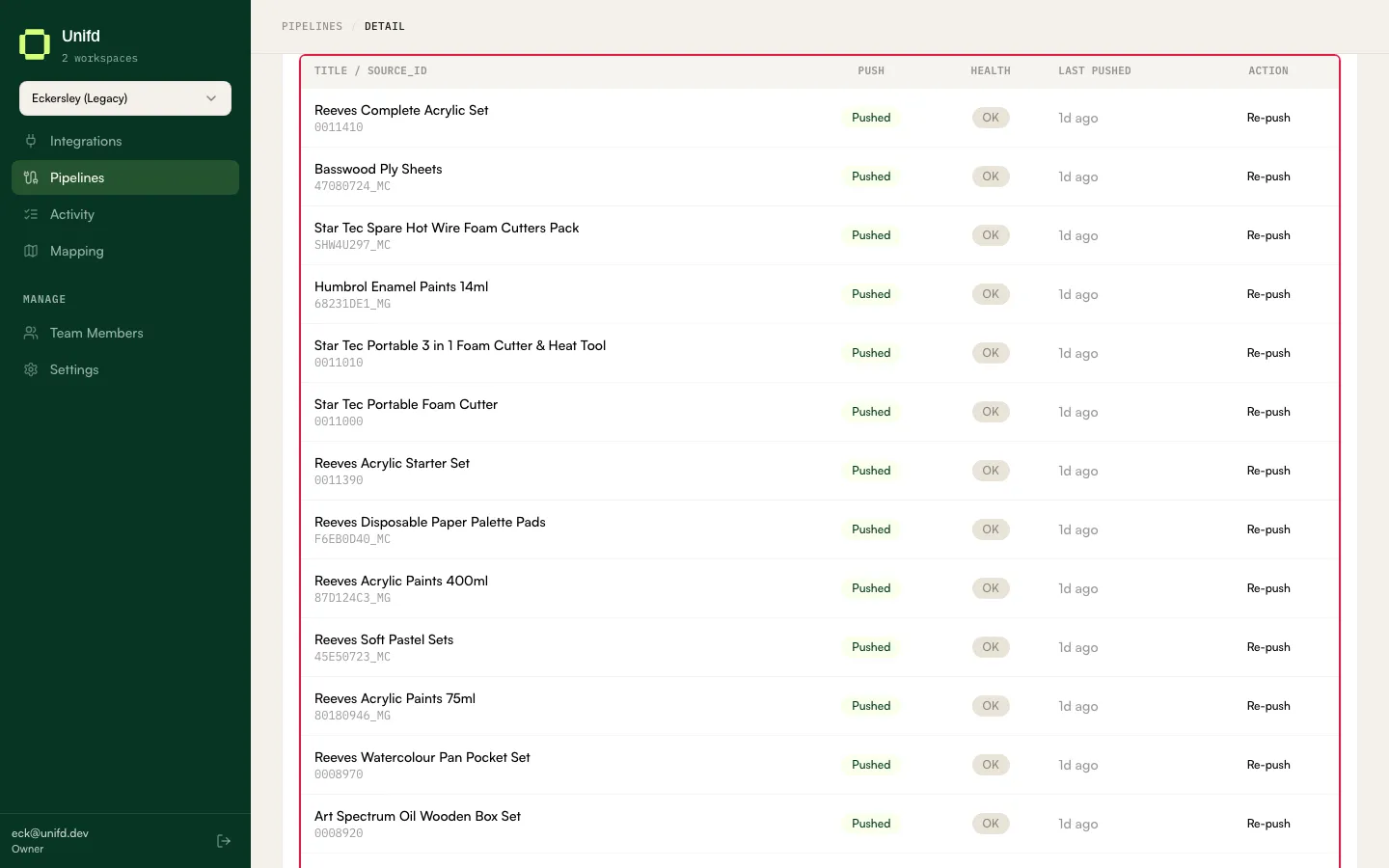
- The filter chips narrow the list: All, Needs action, Pushed, Not pushed, Changed, Failed. Needs action is the useful default when you are working through problems.
- The search box matches on title or source ID.
- Per page sets how many rows you see at a time — 25, 50 or 100.
The count under the table — for example “Showing 1–8 of 8” — tells you how much you are looking at once a filter is applied.
Looking at a single product
Section titled “Looking at a single product”Select a product’s title to open its own page. It shows the product’s identifiers — its source ID and, once pushed, its storefront ID — along with a Last push failed badge if that applies, and two actions:
- Re-fetch from ERP — re-read just this product from your source system.
- Push now — send just this product.
There are also Compare, Mapper preview and Activity tabs for inspecting the record in detail.
Other kinds of data
Section titled “Other kinds of data”Every pipeline type has a data tab built the same way — a table of records, filter chips, and actions — but with columns and states that suit its data. Each has its own guide: